
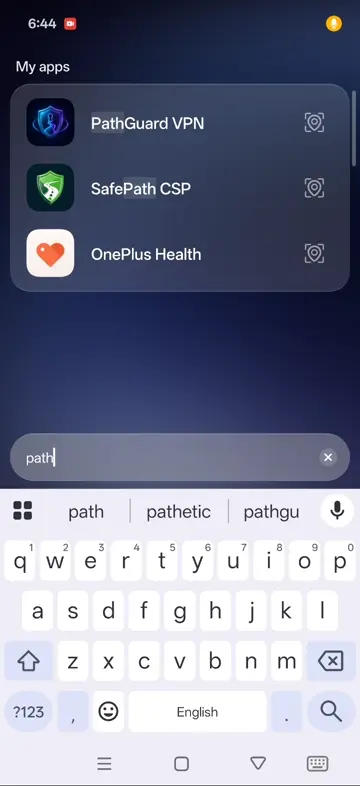
What split tunneling means
Normally a VPN on Android sends all your phone's traffic through the tunnel. Split tunneling lets you choose: some apps go through the VPN, others use your normal connection directly.
PathGuard VPN & Proxy keeps your split-tunnel app choices on your device only, along with your chosen mode and country.
Why you would want it
- Banking apps that refuse to work, or ask for extra verification, when they see a VPN or a foreign location.
- Local services such as food delivery or ride apps that need your real location.
- Speed-sensitive apps like video calls, which may be slower through Tor or a distant volunteer server.
- Apps on your home network such as printers, smart TVs or file transfer tools that need to see local devices.
- Saving data and battery for apps that do not need protection.
Which apps to keep inside the VPN
Keep apps inside the tunnel when the reason you turned on the VPN applies to them:
- Your browser, if you want browsing protected on public Wi-Fi
- Apps you use to reach content blocked on your network
- Messaging or social apps you do not want the local network to see
A simple way to decide
| App type | Usually inside VPN | Usually excluded |
|---|---|---|
| Web browser | Yes | |
| Banking and payment apps | Yes, use your normal connection | |
| Maps, delivery, ride apps | Yes, they need real location | |
| Video calls | Depends on mode | Exclude when using Tor |
| Local network tools (printing, casting) | Yes | |
| News and research | Yes |
Privacy pitfalls
Split tunneling is powerful, and it is easy to undermine your own privacy with it:
- Excluded apps reveal your real IP address and location to their servers.
- Shared accounts can link activity. If the same account is used in an excluded app and in a tunnelled app, the service can connect the two.
- Browsers inside other apps (for example a link opened inside a social app) follow that app's setting, not your browser's.
- Forgetting what you excluded. Review your list occasionally.
If you need strong anonymity, do not use split tunneling at all; send everything through Tor and use Tor Browser for browsing.
Setting it up well
- Start with everything in the VPN.
- When an app misbehaves, exclude that one app rather than many.
- Write down why you excluded each app.
- Review the list after app updates or when your needs change.
Split tunneling and modes
Your split-tunnel choices apply whichever mode you use, but the trade-offs differ. With WARP, slowdowns are small, so you may exclude fewer apps. With Tor or Stealth, excluding video calls and large-download apps saves the volunteer network and keeps those apps usable.
Troubleshooting
- App still sees a VPN: fully close and reopen the app after changing the setting.
- Local devices not found: exclude the controlling app, or check that the phone and device are on the same Wi-Fi.
- Everything slow: check whether a heavy app, such as cloud photo backup, is inside a Tor tunnel.
The bottom line
Split tunneling solves real compatibility problems. Use it to exclude the few apps that need your normal connection, keep everything else protected, and remember that excluded apps are outside the VPN's protection.
An everyday example
Imagine you use PathGuard with Tor on a train's public Wi-Fi. Your browser and news apps stay inside Tor, so the train network cannot see what you read. Your banking app is excluded, so it connects normally and does not trigger a security check, and your map app is excluded so it shows your real location. You get privacy where you want it and normal behaviour where you need it, as long as you remember which is which.
Please note: Volunteer servers and Tor relays are run by third parties, not by SmartPath Apps, and their operators may keep their own logs. Do not use free volunteer servers for banking or other sensitive activity. Follow local laws and the rules of the network you use.
About PathGuard VPN & Proxy
PathGuard VPN & Proxy is a free Android app from SmartPath Apps with four ways to connect: public volunteer servers from the VPN Gate academic project, the Tor network with 30+ exit countries, Stealth mode (Tor with obfs4 or Snowflake bridges) and Cloudflare WARP. There is no account or sign-up, we do not log your VPN sessions, and the source code is open under GPL-3.0. The app is ad-supported.
- Volunteer VPN Gate servers by country
- Tor with 30+ exit countries
- Stealth mode with obfs4 or Snowflake bridges
- Cloudflare WARP
- No account and no session logs from us
- Open source under GPL-3.0
Getting started: Install PathGuard VPN & Proxy from Google Play, pick Volunteer Servers, Tor, Stealth or WARP, tap connect and accept the Android VPN prompt. No account is needed.
Get PathGuard VPN & Proxy on Google Play
PathGuard VPN & Proxy app page · Privacy policy · Terms of use
Frequently asked questions
What is split tunneling?
A VPN setting that lets you choose which apps use the VPN and which use your normal connection.
Does PathGuard support split tunneling?
PathGuard keeps your split-tunnel app choices on your device, along with your mode and country.
Should I exclude my banking app?
If your bank's app has problems with VPNs, excluding it so it uses your normal connection is a common choice.
Does split tunneling reduce privacy?
Excluded apps use your normal connection and reveal your real IP address to their servers.