
Why "offline" matters when you chat with a PDF
Most "chat with PDF" websites work the same way: you upload the file, a server reads it, and a cloud model writes the answer. That is fine for a public brochure. It is a poor fit for a tenancy contract, a medical report, a payslip or a client file, because once the document is uploaded you no longer control where copies live or how long they are kept.
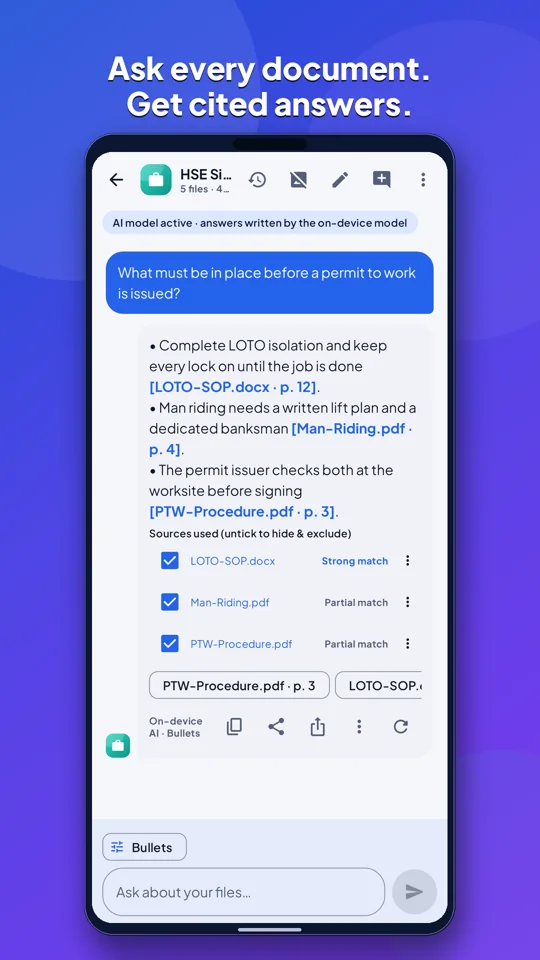
Offline document chat flips the order. The file stays on your phone, the text is extracted on the phone, and the model that answers runs on the phone. Nothing about the document needs to leave the device. The trade-off is that a phone has less computing power than a data centre, so a good offline tool has to be careful: it should answer only from the text it found, and it should show you where that text is.
What you need before you start
- An Android phone with enough free storage for the optional on-device model (the app tells you the size before it downloads anything).
- The PDF itself, saved on the phone, on an SD card or reachable through the Android file picker.
- For scanned PDFs, a text layer. If the pages are only pictures, run OCR first so there is text to search. Making a scanned PDF searchable explains that step.
Step by step: ask your first question
- Open the PDF in a document app that supports on-device AI, such as Omnia.
- If the app asks to download a model, check the size and choose Wi-Fi only if you are on mobile data. Models should never download without your confirmation.
- Start with an orientation question: "What is this document about and who are the parties?" A summary first tells you whether the app has read the whole file correctly.
- Ask narrow follow-ups: "What is the notice period?", "List every payment amount and its due date", "Which clause covers early termination?"
- Tap the citation on each answer and read the original page. Treat the AI answer as a pointer, not as the final word.
Ask better questions, get better answers
Document AI is only as good as the question. A few habits make a large difference:
- Name the thing you want. "What does section 7 say about deposits?" beats "Tell me about money."
- Ask for a format. Request a table, a checklist or step-by-step answer when you want to compare items or follow a process. Omnia has answer modes for Quick, Detailed, Step-by-step, Table, Checklist and Report.
- Ask for absence. "Does this contract mention a penalty for late payment?" A careful assistant should say plainly when the document does not contain the information instead of guessing.
- Keep follow-ups in the same chat so the assistant keeps context, then start a new chat for a new topic.
How to check an answer in under a minute
Every answer that matters should be checked against the source. The fastest routine is:
- Open the cited page.
- Find the exact sentence the answer relies on. Use in-document search if the page is long.
- Check numbers, dates and names character by character. Small OCR errors such as 8 versus B or a missing decimal point are the most common problem with scanned files.
- If the citation does not support the answer, rephrase the question or ask the app to quote the passage.
Our guide on checking AI answers against PDF pages goes deeper into this habit.
Common problems and fixes
| Problem | Likely cause | Fix |
|---|---|---|
| "No information found" on a scanned file | Pages are images with no text layer | Run OCR, then ask again |
| Answer quotes the wrong section | Question too vague | Name the section, party or date |
| Numbers look wrong | OCR misread a character | Check the cited page and correct the source if needed |
| Slow first answer | Model loading for the first time | Wait once; later questions are faster |
When an online tool is still the right choice
Offline AI is not always the answer. If the document is public, very long and you need heavy reasoning across hundreds of pages, a large cloud model can be faster. The point is to choose deliberately: keep private documents on the device and use cloud tools only for material you are happy to share.
A quick privacy checklist
- Does the app say clearly where processing happens?
- Do models download only after you confirm?
- Can you delete chats and cached copies?
- Does any optional online feature (such as translation) send only short text rather than whole files?
If the answer to all four is yes, you can use document chat for everyday paperwork with much more confidence.
Please note: Omnia's AI answers come only from your documents, but they can still contain mistakes, so check important facts on the cited page.
About Omnia
Omnia is an offline-first document app for Android from SmartPath Apps. It scans, reads, edits, signs and converts documents, and its AI assistant answers questions only from your own files, showing the page each fact came from. OCR, AI and conversion run on your phone, so your documents are not uploaded. Optional on-device models download only after you confirm. Omnia needs no account and is free with ads; you can watch a short video to hide ads for six hours.
- AI answers only from your files, with page citations
- Scanner with edge detection, filters and ID copies
- Offline OCR for print and handwriting, including Arabic and Urdu
- PDF editing, signatures, forms, redaction, passwords and compression
- Convert PDF to and from Word, Excel and PowerPoint
- 21 languages and no account
Getting started: Install Omnia from Google Play, open or scan a document, and confirm any optional model download before it starts. No sign-up is needed.
▶ Open the free browser PDF workspace. The browser workspace merges, extracts, reorders, rotates, deletes and splits pages, adds watermarks and page numbers, and turns PNG or JPEG images into a PDF, all locally in your browser. It does not include the Android app's AI, OCR or document conversion.
Omnia: AI Docs Bot & Scanner app page · Privacy policy · Terms of use
Frequently asked questions
Can I chat with a PDF without internet?
Yes, if the app runs its text extraction and AI model on the phone. With Omnia you download the optional model once, after confirming, and then questions are answered on the device.
Is my PDF uploaded when I ask a question?
Not with on-device processing. Omnia reads, searches and answers on your phone, and your documents are not uploaded.
Why does the AI say the document has no answer?
Either the information is not in the file or the file has no text layer. Run OCR on scanned pages, then ask again with a more specific question.
Can offline AI make mistakes?
Yes. Answers can contain errors, which is why each answer shows the page it came from. Check important facts on that page.