
Why share slides as PDF
A PowerPoint file depends on the software that opens it. Fonts get swapped, animations behave differently, and the recipient may not have a presentation app at all. A PDF freezes each slide exactly as you designed it. Anyone can open it on a phone, a laptop or a school computer.
Use PDF when you send slides to a client after a meeting, submit a class presentation, share a deck with a colleague who only needs to read it, or upload to a portal that only accepts PDF.
Convert with Omnia
- Open the PPTX file in Omnia.
- Choose convert to PDF.
- Flip through the result and check each slide.
- Save with a clear name: "Project-Update-2026-11-17.pdf".
Omnia converts between PDF and Word, Excel and PowerPoint on the phone, so the presentation is not uploaded to a website.
What changes in a PDF
| In PowerPoint | In the PDF |
|---|---|
| Animations and transitions | Each slide is static, showing its final state |
| Embedded video or audio | Not playable; a still frame or placeholder appears |
| Speaker notes | Usually not included on the slide page |
| Hyperlinks | Often kept as clickable links, check them |
| Fonts | Fixed as they appear on your device during conversion |
If a slide relies on an animation to reveal content step by step, check that the final state still makes sense on its own.
Prepare the deck first
- Remove hidden and backup slides you do not want to share.
- Check fonts. If you used an unusual font, make sure it displays on the phone before converting, or switch to a common font.
- Replace videos with a screenshot and a link if the content matters.
- Number slides so people can refer to them in feedback.
Keep the file small
Decks with many high-resolution photos can be large. Compress images in the presentation before converting, or compress the finished PDF. Omnia includes PDF compression. A 40 MB attachment that bounces from an inbox is a common last-minute problem.
Make a handout version
For meetings, a PDF handout with several slides per page is easier to print and annotate. Many presentation apps can export handouts; alternatively, share the full-size PDF and let people print as they like. Add page numbers and a footer with the date and title so printed pages stay in order.
PDF back to PowerPoint
Omnia can also convert PDF to PowerPoint, which helps when you receive a PDF deck and need to reuse a slide. Expect to tidy the result: text boxes, fonts and alignment may need adjusting, and complex designs may convert as images.
Ask questions about a presentation
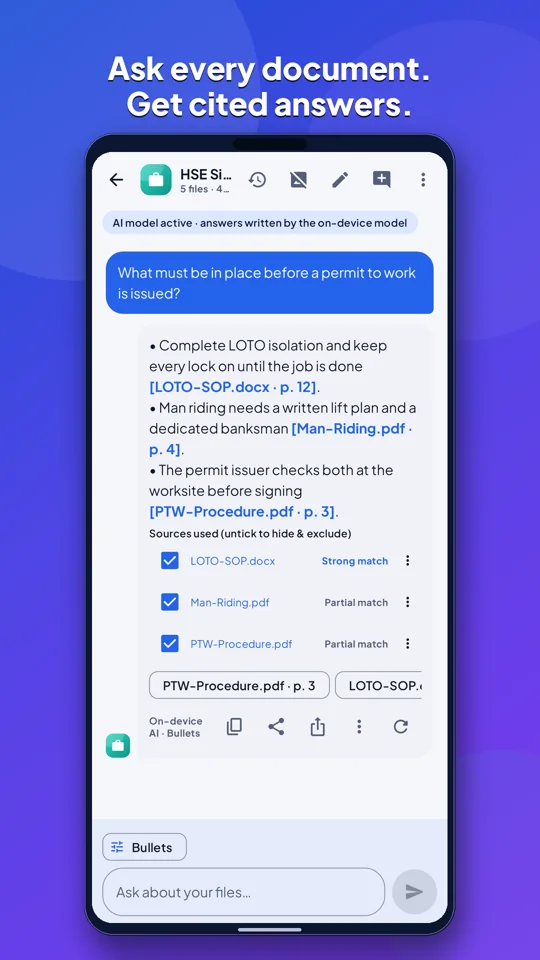
Omnia can build a bot from PowerPoint files and answer with citations to the slide. "What were the three recommendations?" or "Which slide shows the budget?" saves scrolling through a long deck, especially one someone else made.
Final check before sending
- Every slide present and in order
- Text readable on a phone screen
- No speaker notes or comments with private remarks
- File size reasonable for email
Check the result before sending
Open the PDF and flip through every slide before you share it. Look for text that has moved out of boxes, fonts that were swapped, and images that were cropped. Speaker notes are usually not included in a slide PDF, so if the reader needs them, export the notes separately or add the key points to the slides. Keep the original presentation too, because a PDF is for reading, not editing.
Please note: Omnia's AI answers come only from your documents, but they can still contain mistakes, so check important facts on the cited page.
About Omnia
Omnia is an offline-first document app for Android from SmartPath Apps. It scans, reads, edits, signs and converts documents, and its AI assistant answers questions only from your own files, showing the page each fact came from. OCR, AI and conversion run on your phone, so your documents are not uploaded. Optional on-device models download only after you confirm. Omnia needs no account and is free with ads; you can watch a short video to hide ads for six hours.
- AI answers only from your files, with page citations
- Scanner with edge detection, filters and ID copies
- Offline OCR for print and handwriting, including Arabic and Urdu
- PDF editing, signatures, forms, redaction, passwords and compression
- Convert PDF to and from Word, Excel and PowerPoint
- 21 languages and no account
Getting started: Install Omnia from Google Play, open or scan a document, and confirm any optional model download before it starts. No sign-up is needed.
▶ Open the free browser PDF workspace. The browser workspace merges, extracts, reorders, rotates, deletes and splits pages, adds watermarks and page numbers, and turns PNG or JPEG images into a PDF, all locally in your browser. It does not include the Android app's AI, OCR or document conversion.
Omnia: AI Docs Bot & Scanner app page · Privacy policy · Terms of use
Frequently asked questions
Can I convert PPTX to PDF on my phone?
Yes. Omnia converts PowerPoint to PDF on Android, without uploading the file.
Do animations work in a PDF?
No. Each slide appears in its final state. Check slides that rely on animations.
Can I turn a PDF back into PowerPoint?
Yes. Omnia converts PDF to PowerPoint. Expect to tidy fonts and layout afterwards.
How do I make the PDF smaller?
Compress images in the deck before converting, or compress the finished PDF.