Why listen to documents
Reading a 30-page report on a phone screen is tiring. Listening to it while you walk, commute or cook is not. Read-aloud also helps people with dyslexia or low vision, language learners who want to hear pronunciation, and anyone who absorbs information better by ear.
Two ways to listen in Omnia
- Read aloud: Omnia reads the document text using your phone's voice, page by page.
- AI audio podcast: Omnia can turn a document into an audio overview, so you hear the main points rather than every word.
Use read-aloud when every word matters (a contract you must understand) and the audio overview when you want the gist quickly (a long report you are triaging).
Step by step: read aloud
- Open the PDF, Word file, EPUB or text file in Omnia.
- Start read-aloud from the page you want.
- Adjust the speed. Most people can follow 1.2-1.5x after a few minutes.
- Pause, skip back or jump to another page as needed.
Scanned PDFs need text first
Read-aloud speaks the text layer of a document. A scan is an image, so there is nothing to read until OCR runs. Run Omnia's offline OCR first, then read-aloud works on the scanned pages too.
Get better listening
| Tip | Why |
|---|---|
| Choose a voice in your phone's text-to-speech settings | Some voices are clearer than others |
| Install the voice for the document's language | An English voice reading Arabic text sounds wrong |
| Start slower for technical material | Numbers and terms need more attention |
| Use headphones in public | Clearer audio and privacy |
Tables, numbers and headers
Read-aloud works best with flowing text. Tables are read cell by cell, which can be hard to follow, and page headers and footers may be read on every page. For documents full of tables, ask Omnia a question instead: "Read me the payment schedule as a list" gives a clearer result than listening to a table.
Study with your ears
Read-aloud is a strong study tool:
- First pass by ear, second pass by eye. Listening first gives you the structure; reading second fixes the details.
- Pause after each section and say the main point out loud.
- Ask follow-up questions about anything you did not understand, and check the cited page.
Languages
Omnia's interface comes in 21 languages, and read-aloud depends on the voices installed on your phone. Install the voice for each language you need through your phone's text-to-speech settings. For bilingual documents, listen in the main language and check names and numbers visually.
Listening and privacy
Your documents stay on the phone with Omnia. If you listen in public, use headphones so others do not hear private content.
Make listening a habit
Pick one recurring moment, such as the morning commute or an evening walk, and queue the document you need to get through that day. Twenty minutes of listening at a comfortable speed covers a surprising amount: a long policy document, a chapter of a textbook or a week's worth of meeting notes. Bookmark where you stopped, and the next session picks up in seconds.
Please note: Omnia's AI answers come only from your documents, but they can still contain mistakes, so check important facts on the cited page.
About Omnia
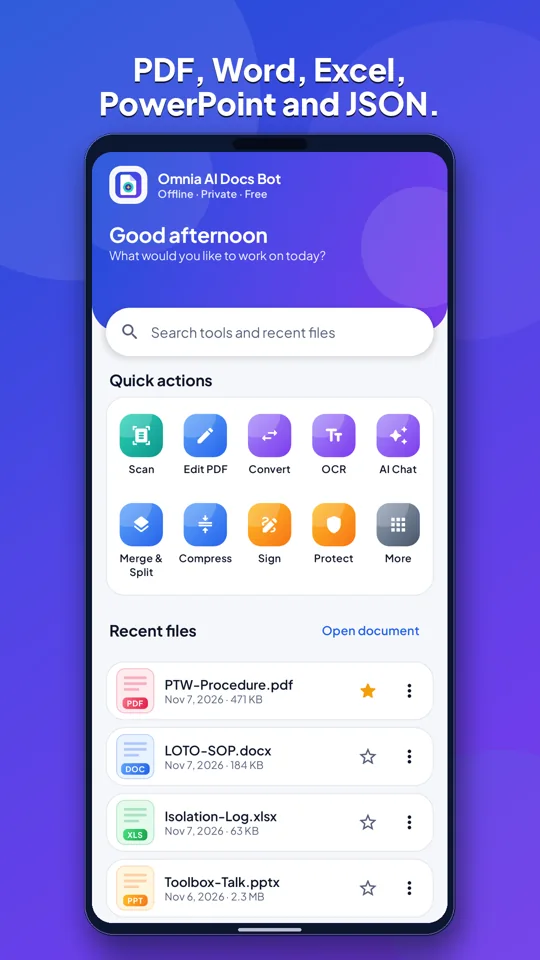
Omnia is an offline-first document app for Android from SmartPath Apps. It scans, reads, edits, signs and converts documents, and its AI assistant answers questions only from your own files, showing the page each fact came from. OCR, AI and conversion run on your phone, so your documents are not uploaded. Optional on-device models download only after you confirm. Omnia needs no account and is free with ads; you can watch a short video to hide ads for six hours.
- AI answers only from your files, with page citations
- Scanner with edge detection, filters and ID copies
- Offline OCR for print and handwriting, including Arabic and Urdu
- PDF editing, signatures, forms, redaction, passwords and compression
- Convert PDF to and from Word, Excel and PowerPoint
- 21 languages and no account
Getting started: Install Omnia from Google Play, open or scan a document, and confirm any optional model download before it starts. No sign-up is needed.
▶ Open the free browser PDF workspace. The browser workspace merges, extracts, reorders, rotates, deletes and splits pages, adds watermarks and page numbers, and turns PNG or JPEG images into a PDF, all locally in your browser. It does not include the Android app's AI, OCR or document conversion.
Omnia: AI Docs Bot & Scanner app page · Privacy policy · Terms of use
Frequently asked questions
Can my phone read PDFs aloud?
Yes. Omnia reads PDFs and other documents aloud using your phone's voice.
Can it read a scanned PDF?
After OCR, yes. Read-aloud needs a text layer, which OCR creates.
What is the AI audio podcast?
An audio overview Omnia can create from a document, so you hear the main points instead of every word.
How do I change the voice?
Choose and install voices in your phone's text-to-speech settings.